
How to make a long pin image using Photoshop
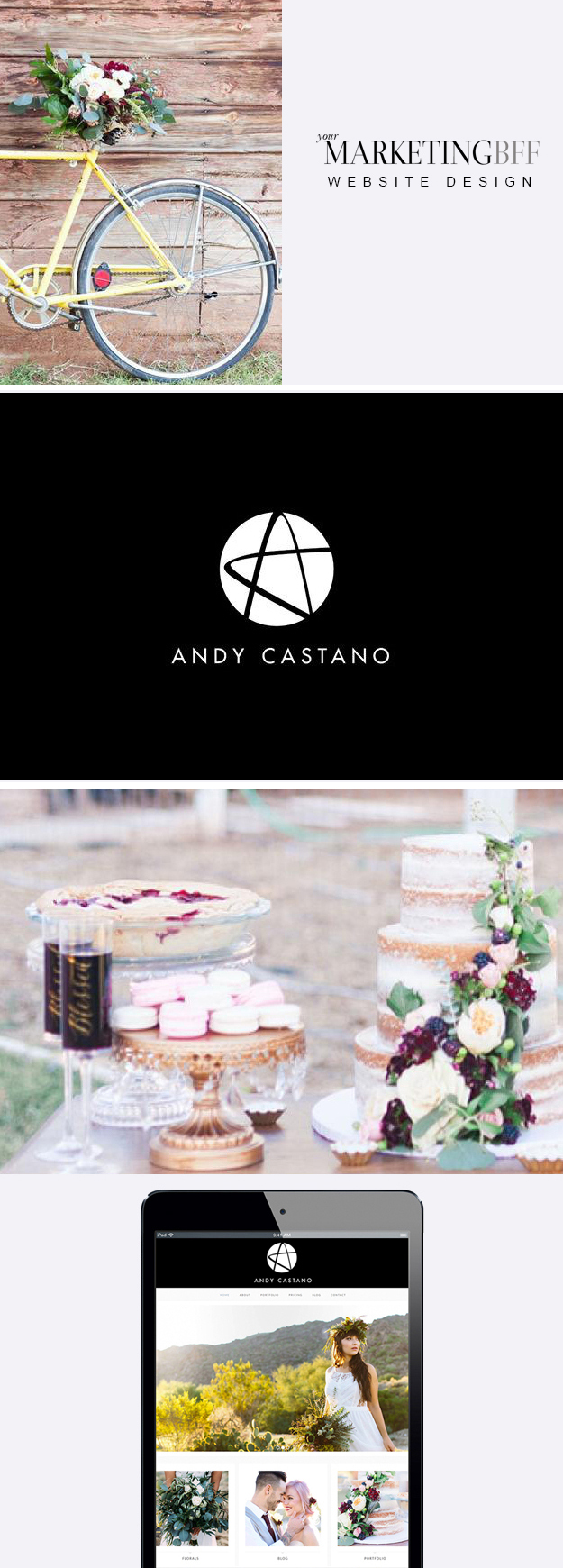
Last week we learned how to hide an image in a wordpress post for pinning – most of the time bloggers will hide a long vertical image (aka a long pin image) that they and others can pin on Pinterest.
Why?
PRO: Long pin images get more real estate on Pinterest, plus receive more repins, AND with more repins, you receive more traffic to your site!
CON: Don’t necessarily like the way the long, text-heavy image(s) look in a post, so you can hide it.
Today, I’m going to show you how to make a long pin image using Photoshop – that you may or may not want to hide!
HOW TO MAKE A LONG PIN IMAGE IN PHOTOSHOP
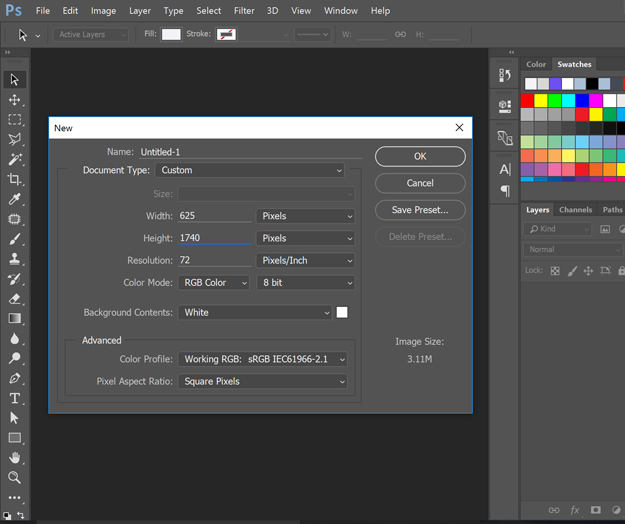
- Create your image size. File/New and place the pixel width and height you’d like. My image is 625 pixel width x 1740 pixel high, but you can make it any size you’d like.
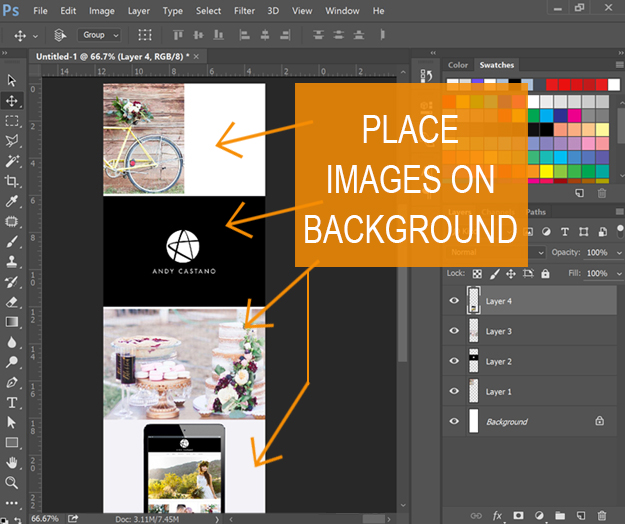
- Place images on the background. I chose to add 4 images at this stage: bike, logo, dessert table and the final website design we created for our client.
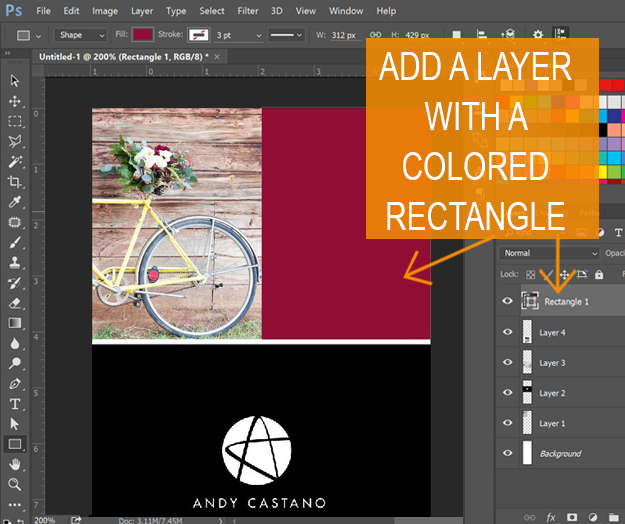
- Add a layer with a colored rectangle using the “rectangle tool”. My finished design was actually a light pink, but it can be any color you choose. Below is what the original looked like, but I wanted to provide you with another color example as well – so you could see it better.

- Add a layer of text using the “horizontal text tool”. My long pin image is for showcasing a recent Your Marketing BFF website design for client Andy Castano Design, so I added the text ‘website design’.

- I decided to place another image on the background – the Your Marketing BFF logo image. Note: this step may or may not be necessary for your long pin design.

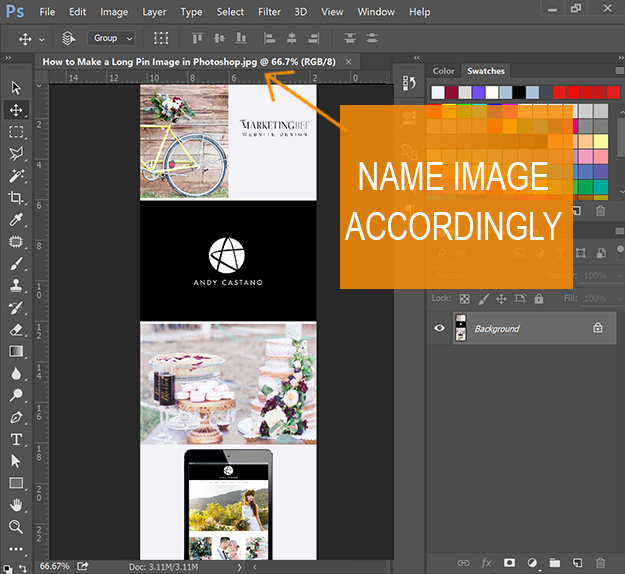
- Save file and name it accordingly. Click File/Save As and name your image what it is. I decided to name mine “How to Make a Long Pin Image in Photoshop”. Not sure how to name your images accordingly for the best SEO results? Read here and here.
This tutorial is not the end-all-be-all of Photoshop’s capabilities – it’s just showing you how I create a long pin image, which may or may not include a colored rectangle and more than one image. Here’s last week’s image that included two images, a colored rectangle and text.

Photoshop is very versatile, more so than a site like Canva or PicMonkey (which are also good places to start, but not quite as flexible).
I’d encourage you to use a similar “style” as the one used today while you’re playing around, but later create something that perfectly matches your brand!
I hope you’ve enjoyed learning how to make a long pin image using Photoshop. Happy creating!
Want to hide your newly created long pin image in a WordPress post? Learn how here.
Photos via Andy Castano Design.
