
How To Add A Featured Image in your WordPress RSS Feed
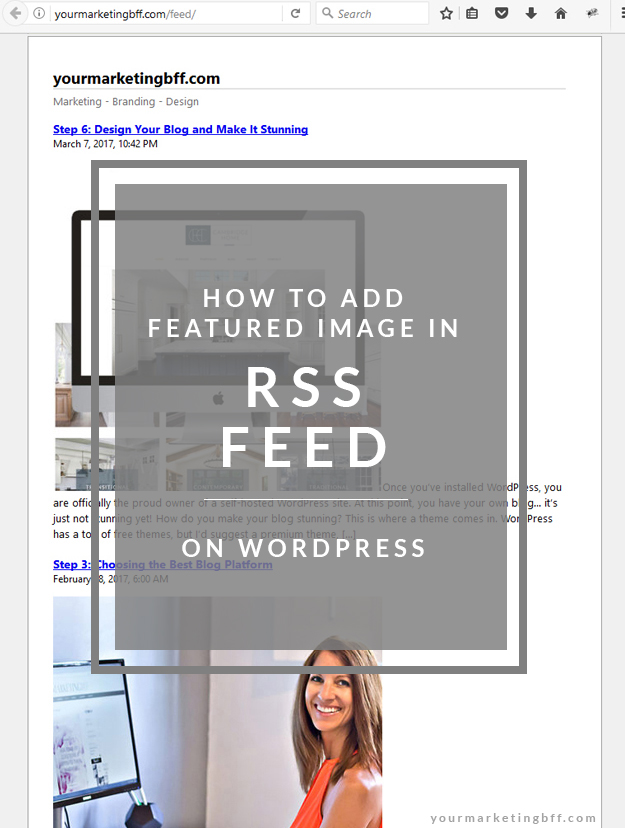 Back in the day (about 4 years ago, haha), a lot of people would read blogs through RSS feeds.
Today, reading a blog in an RSS feed is pretty rare, but RSS feeds are not dead. RSS feeds are still used by a lot of different services like Mailchimp for automatic blog post emails.
Do you have a featured image in your WordPress RSS Feed? You should!
How to find your RSS feed
In your browser, type your website url, then add a forward slash and the word feed. Here’s an example of what a feed url looks like: www.yourmarketingbff.com/feed. Replace my domain name, with your own.
How To Add A Featured Image In Your WordPress RSS Feed
One option is to add code to your functions.php file, but if you’re not comfortable with adding code there’s another, easier option… it’s a free WordPress plugin called Featured Images in RSS & Mailchimp Email.
This plugin will add an image in your RSS feed instantly and output your blog featured photos to Mailchimp RSS emails (and other services that use RSS feed data).
I wrote a blog post on How To Email Your Blog Posts Like A Pro – which explains Mailchimp RSS emails, you can read it here.
Long story short: All you need to know is that your blog posts emailing out automatically is done with the help of your RSS feed. And if you include a featured image in your RSS Feed, your blog post will show a featured image as well… increasing your odds that it will be clicked on and read!
The Featured Images in RSS & Mailchimp plugin allows you to:
-Select a featured image size. You can choose from thumbnail, medium, large, full and any theme-specific sizes.
-Choose the image position. Do you want the image left above the text? The image right with a text wrap? Centered? You choose.
-Instantly set the spacing between the image and the body text.
Want to install the Featured Images in RSS & Mailchimp plugin? Here are the steps:
Step 1: Login to your WordPress dashboard and Install the plugin. Plugins/Add new.

Step 2: Activate your new plugin.
Step 3: Select your image size, position and spacing. See image below.

Step 4: Save Changes.
Now you know how to add a featured image in your WordPress RSS Feed!
Note: Your featured image(s) won’t start showing up in your RSS feed, until after you’ve posted a new blog post. Here’s what a featured image in your WordPress RSS Feed looks like:

Let me know if you get stuck. xo
