
10 Minute Marketing :: Custom Pin It Button
 10 Minute Marketing is a quick, marketing strategy you can start doing immediately. This is a way for you to start taking ACTION towards marketing your business with just 10 minutes of your time!

Creating A Custom Pin It Button
Objective: Create a custom pin it button so readers can easily pin your blog posts – it’s about driving more traffic to your site!
Pinterest is one of my top sources of traffic. Most savvy pinners expect to pin an image from your blog post just by clicking on it, plus you can’t rely on readers having a browser Pin It bookmarklet.
Trust me, you absolutely want to give readers an easy way to pin your blog posts to Pinterest!

HOW TO CREATE A CUSTOM PIN IT BUTTON
In this post, I’m going to show you how to add a Pin It button that will appear when someone hovers over an image in your blog post. Note: this tutorial is for a self-hosted WordPress site.
- Login to your WordPress dashboard.
- Install Jquery pin it button for images plugin. Go to PLUGINS, ADD NEW. In the Search plugins field (upper right hand side), type in ‘jquery pin it button for images’, click on Install Now button and activate.
- Visit SETTINGS/jQuery Pin It Button. Under SELECTIONS tab, determine which pages you’d like your pin it button to show on (delete the areas you don’t want a pin it button on). Click on SAVE CHANGES button. Here’s what mine looks like.

- While still in the plugin settings page, click on the VISUAL tab. You can determine if you want the Pin It button always on or when readers hover over the image. I set my transparency to 0 because I don’t want my image to fade when someone hovers over it, but feel free to do what you like (.1 – 1.0 are your options).
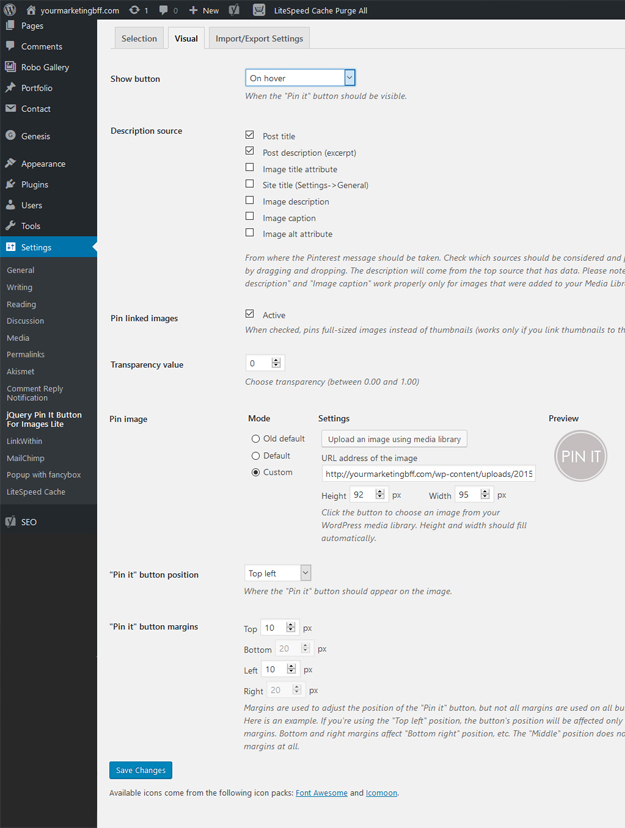
- Check the Pin Image mode to CUSTOM.
- Add your custom Pin It image.
Click on ‘upload an image using your media library’. If you haven’t already uploaded your Pin It button image to your media library, you can do so now. When you click on your uploaded Pin It image, click on the blue button (right hand bottom corner) that says ‘Use as Pin It Button’.
- Adjust the location. Click on SAVE CHANGES button.
- You’re done.
Want to see your custom Pin It Button in action? Do this 10 minute marketing for creating a custom pin it button, and look at it from the front of your website! enjoy
Need a Pin It Button image but don’t have time to create your own? You can download my set of Pin It button images for free here (then right click to save it). You can open the file in your favorite photo editing program (PicMonkey, Canva, Photoshop) and crop out the buttons you don’t want. Note: The download is a .png file, so the background is transparent, not white. Trust me, this is what you want. xo
 Main image via Boxwood Avenue – go get this homemade spiced cranberry jam preserves with rosemary and cinnamon recipe too! It’d make a great gift for someone special. YUM
